カレントディレクトリ (作業ディレクトリ) を取得するコードを紹介します。
C#のプログラム内でカレントディレクトリを取得する場合は、Directoryクラスの GetCurrentDirectory() メソッドを呼び出して取得します。
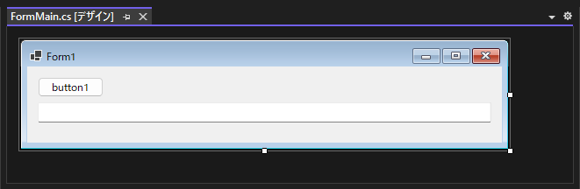
下図のフォームを作成します。フォームにボタンとテキストボックスを配置します。
以下のコードを記述します。
namespace GetCurrentDirectory
{
  public partial class FormMain : Form
  {
    public FormMain()
    {
      InitializeComponent();
    }

    private void button1_Click(object sender, EventArgs e)
    {
      string CurrentDir = Directory.GetCurrentDirectory();
      textBox1.Text = CurrentDir;
    }
  }
}
DirecrotyクラスのGetCurrentDirectoryメソッドを呼び出し、カレントディレクトリを取得します。
カレントディレクトリは、string型で、GetCurrentDirectoryメソッドの戻り値として取得できます。
string CurrentDir = Directory.GetCurrentDirectory();
取得したカレントディレクトリのパスの文字列をテキストボックスに表示します。
textBox1.Text = CurrentDir;
プロジェクトを実行します。下図のウィンドウが表示されます。
[button1]をクリックします。カレントディレクトリのパスの文字列がテキストボックスに表示されます。
今回のプログラムでは、実行ファイルのあるディレクトリがカレントディレクトリとなっています。
多くの場合では、カレントディレクトリとアプリケーション配置ディレクトリは同じパスになりますが、
異なるパスになる場合もあります。
Windows アプリケー所を作成し、以下のテストプログラムを作成します。
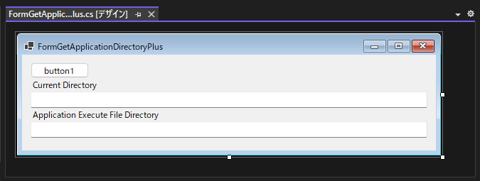
下図のフォームを作成します。ボタンとテキストボックスを2つ配置します。
以下のコードを記述します。
using System;
using System.Collections.Generic;
using System.ComponentModel;
using System.Data;
using System.Drawing;
using System.IO;
using System.Linq;
using System.Text;
using System.Threading.Tasks;
using System.Windows.Forms;

namespace GetPath
{
  public partial class FormGetApplicationDirectoryPlus : Form
  {
    public FormGetApplicationDirectoryPlus()
    {
      InitializeComponent();
    }

    private void button1_Click(object sender, EventArgs e)
    {
      string CurrentDir = Directory.GetCurrentDirectory();
      textBox1.Text = CurrentDir;

      string ExeDirPath = Path.GetDirectoryName(Application.ExecutablePath);
      textBox2.Text = ExeDirPath;

    }
  }
}
Directory.GetCurrentDirectory(); メソッドにより、カレントディレクトリのパスを取得し上部のテキストボックスに表示します。
下部のテキストボックスには、アプリケーション実行ファイルのディレクトリのパス Path.GetDirectoryName(Application.ExecutablePath); を取得し下部のテキストボックスに表示します。
アプリケーション実行ディレクトリの取得についてはこちらの記事を参照してください。
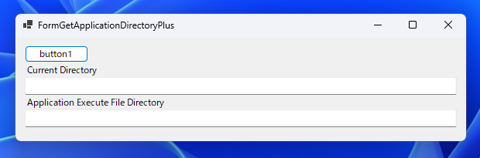
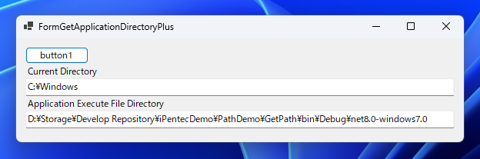
下図のウィンドウが表示されます。
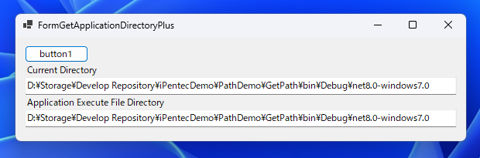
[button1]をクリックします。2つのテキストボックスにパスが表示されますが、どちらも同じパスになります。
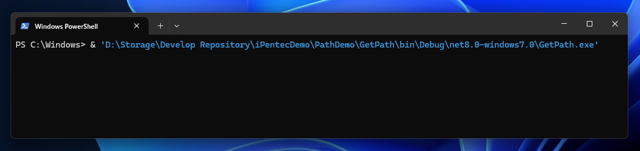
カレントディレクトリとアプリケーション実行ディレクトリのパスが異なる例として、コマンドラインでアプリケーションを起動した場合があります。
コマンドラインから絶対パスで実行ファイルを起動した場合、カレントディレクトリはコマンドラインのカレントディレクトリのパスとなります。
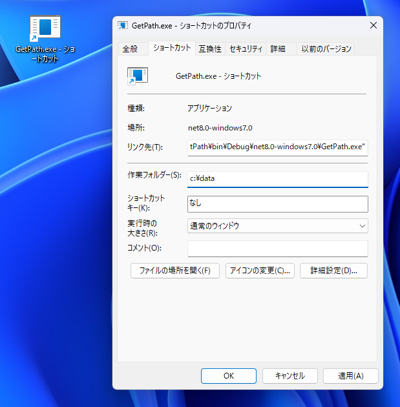
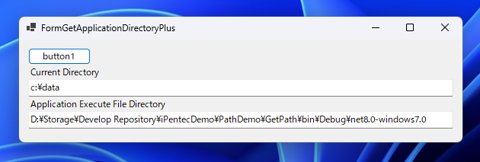
また、ショートカットでアプリケーションを起動する場合で、ショートカットの
[作業フォルダー]の設定がアプリケーション実行ディレクトリとは異なるパスが設定されている場合にも、
カレントディレクトリとアプリケーション実行ディレクトリのパスが異なる状況になります。