こちらの記事でキャラクターのモーション画像を作成できました。キャラをアニメーションさせたいです。
Webページで実装して、Webブラウザを利用して動作確認できる方法が良いです。


今回はOpenAIのCodexを利用して実装します。
あらかじめ、実装したいHTMLファイルは作成しておきます。
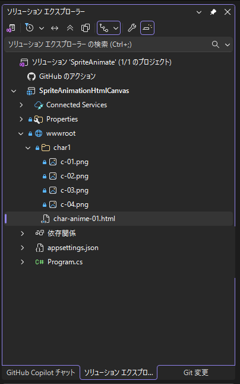
ファイルの配置は下図です。スプライト画像は"char1"ディレクトリ内に配置します。
スプライト画像の作成手順はこちらの記事を参照してください。
Codexを起動して、以下のプロンプトを実行します。
実装結果を確認します。最初のフレームに戻らなかったため、追加で以下の指摘を入れます。
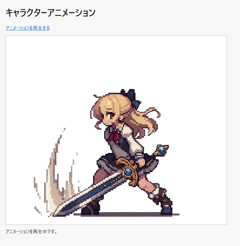
作成されたHTMLを開いて動作確認します。リンクをクリックするとスプライトの画像を切り替え、
キャラクターがアニメーションするように見えます。
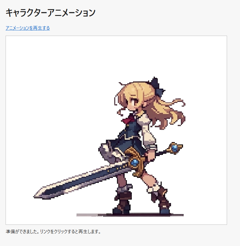
実装結果は以下のURLにもあります。
コードは以下です。
<!DOCTYPE html>
<html lang="ja">
<head>
    <meta charset="utf-8" />
    <meta name="viewport" content="width=device-width, initial-scale=1.0" />
    <title>Canvas Sprite Animation</title>
    <style>
        body {
            margin: 24px;
            font-family: "Yu Gothic UI", "Meiryo", sans-serif;
            background-color: #f7f7f7;
            color: #222;
        }

        .container {
            max-width: 720px;
        }

        #animationCanvas {
            display: block;
            margin-top: 16px;
            border: 1px solid #b8b8b8;
            background-color: #fff;
        }

        #playLink {
            color: #0a63c9;
            text-decoration: underline;
            cursor: pointer;
        }

        #message {
            margin-top: 12px;
            min-height: 1.5em;
        }
    </style>
</head>
<body>
    <div class="container">
        <h1>キャラクターアニメーション</h1>
        <p><a id="playLink" href="#">アニメーションを再生する</a></p>
        <canvas id="animationCanvas" width="320" height="320"></canvas>
        <div id="message">画像を読み込み中です。</div>
    </div>

    <script>
        const framePaths = [
            "char1/c-01.png",
            "char1/c-02.png",
            "char1/c-03.png",
            "char1/c-04.png"
        ];

        const playLink = document.getElementById("playLink");
        const canvas = document.getElementById("animationCanvas");
        const context = canvas.getContext("2d");
        const message = document.getElementById("message");

        let frames = [];
        let animationTimerId = null;
        let currentFrameIndex = 0;

        function drawFrame(frameIndex) {
            const image = frames[frameIndex];
            if (!image) {
                return;
            }

            if (canvas.width !== image.width || canvas.height !== image.height) {
                canvas.width = image.width;
                canvas.height = image.height;
            }

            context.clearRect(0, 0, canvas.width, canvas.height);
            context.drawImage(image, 0, 0);
        }

        function stopAnimation() {
            if (animationTimerId !== null) {
                clearInterval(animationTimerId);
                animationTimerId = null;
            }
        }

        function playAnimation() {
            if (frames.length === 0) {
                return;
            }

            stopAnimation();
            currentFrameIndex = 0;
            drawFrame(currentFrameIndex);
            message.textContent = "アニメーションを再生中です。";

            animationTimerId = window.setInterval(() => {
                currentFrameIndex += 1;

                if (currentFrameIndex >= frames.length) {
                    stopAnimation();
                    currentFrameIndex = 0;
                    drawFrame(currentFrameIndex);
                    message.textContent = "再生が完了しました。先頭フレームに戻りました。";
                    return;
                }

                drawFrame(currentFrameIndex);
            }, 150);
        }

        function loadFrames() {
            const imagePromises = framePaths.map((path) => {
                return new Promise((resolve, reject) => {
                    const image = new Image();
                    image.onload = () => resolve(image);
                    image.onerror = () => reject(new Error(path + " の読み込みに失敗しました。"));
                    image.src = path;
                });
            });

            Promise.all(imagePromises)
                .then((loadedFrames) => {
                    frames = loadedFrames;
                    drawFrame(0);
                    message.textContent = "準備ができました。リンクをクリックすると再生します。";
                })
                .catch((error) => {
                    message.textContent = error.message;
                });
        }

        playLink.addEventListener("click", (event) => {
            event.preventDefault();
            playAnimation();
        });

        loadFrames();
    </script>
</body>
</html>
続いて効果音を追加します。効果音の作成はこちらの記事を参照してください
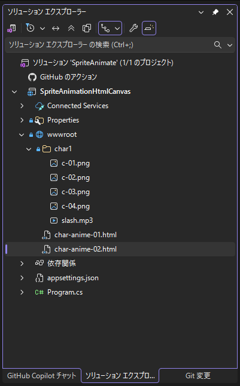
ファイル配置は下図です。効果音のサウンドファイル(slash.mp3)はchar1ディレクトリ内に配置しています。
以下のプロンプトで指示をします。
動作を確認します。アニメーションの速度を速めないと効果音と合わないため、以下の指示を出します。
実装結果は以下のURLです。先ほどと同じ画面が表示されますが、リンクをクリックすると効果音付きでアニメーションします。
コードは以下です。
<!DOCTYPE html>
<html lang="ja">
<head>
    <meta charset="utf-8" />
    <meta name="viewport" content="width=device-width, initial-scale=1.0" />
    <title>Canvas Sprite Animation</title>
    <style>
        body {
            margin: 24px;
            font-family: "Yu Gothic UI", "Meiryo", sans-serif;
            background-color: #f7f7f7;
            color: #222;
        }

        .container {
            max-width: 720px;
        }

        #animationCanvas {
            display: block;
            margin-top: 16px;
            border: 1px solid #b8b8b8;
            background-color: #fff;
        }

        #playLink {
            color: #0a63c9;
            text-decoration: underline;
            cursor: pointer;
        }

        #message {
            margin-top: 12px;
            min-height: 1.5em;
        }
    </style>
</head>
<body>
    <div class="container">
        <h1>キャラクターアニメーション</h1>
        <p><a id="playLink" href="#">アニメーションを再生する</a></p>
        <canvas id="animationCanvas" width="320" height="320"></canvas>
        <div id="message">画像を読み込み中です。</div>
    </div>

    <script>
        const framePaths = [
            "char1/c-01.png",
            "char1/c-02.png",
            "char1/c-03.png",
            "char1/c-04.png"
        ];

        const playLink = document.getElementById("playLink");
        const canvas = document.getElementById("animationCanvas");
        const context = canvas.getContext("2d");
        const message = document.getElementById("message");
        const slashSound = new Audio("char1/slash.mp3");
        const frameIntervalMs = 80;

        slashSound.preload = "auto";

        let frames = [];
        let animationTimerId = null;
        let currentFrameIndex = 0;

        function drawFrame(frameIndex) {
            const image = frames[frameIndex];
            if (!image) {
                return;
            }

            if (canvas.width !== image.width || canvas.height !== image.height) {
                canvas.width = image.width;
                canvas.height = image.height;
            }

            context.clearRect(0, 0, canvas.width, canvas.height);
            context.drawImage(image, 0, 0);
        }

        function stopAnimation() {
            if (animationTimerId !== null) {
                clearInterval(animationTimerId);
                animationTimerId = null;
            }
        }

        function playAnimation() {
            if (frames.length === 0) {
                return;
            }

            stopAnimation();
            slashSound.pause();
            slashSound.currentTime = 0;
            slashSound.play().catch(() => {
                message.textContent = "アニメーションを再生中です。効果音の再生はブラウザにより制限されました。";
            });
            currentFrameIndex = 0;
            drawFrame(currentFrameIndex);
            message.textContent = "アニメーションを再生中です。";

            animationTimerId = window.setInterval(() => {
                currentFrameIndex += 1;

                if (currentFrameIndex >= frames.length) {
                    stopAnimation();
                    currentFrameIndex = 0;
                    drawFrame(currentFrameIndex);
                    message.textContent = "再生が完了しました。先頭フレームに戻りました。";
                    return;
                }

                drawFrame(currentFrameIndex);
            }, frameIntervalMs);
        }

        function loadFrames() {
            const imagePromises = framePaths.map((path) => {
                return new Promise((resolve, reject) => {
                    const image = new Image();
                    image.onload = () => resolve(image);
                    image.onerror = () => reject(new Error(path + " の読み込みに失敗しました。"));
                    image.src = path;
                });
            });

            Promise.all(imagePromises)
                .then((loadedFrames) => {
                    frames = loadedFrames;
                    drawFrame(0);
                    message.textContent = "準備ができました。リンクをクリックすると再生します。";
                })
                .catch((error) => {
                    message.textContent = error.message;
                });
        }

        playLink.addEventListener("click", (event) => {
            event.preventDefault();
            playAnimation();
        });

        loadFrames();
    </script>
</body>
</html>